Popp Developer Portal Guide: API Keys, Organisation ID & Webhooks
Last updated: May 1, 2026
The Popp Developer Portal lets you generate API keys and configure webhooks to integrate with the Popp platform. This guide walks you through creating and managing API keys (including where to find your Organisation ID), and setting up webhooks to receive real-time event notifications from Popp.
Key things to note: API keys and webhook secrets can only be viewed once at the point of creation - make sure to copy and store them securely before closing the modal.
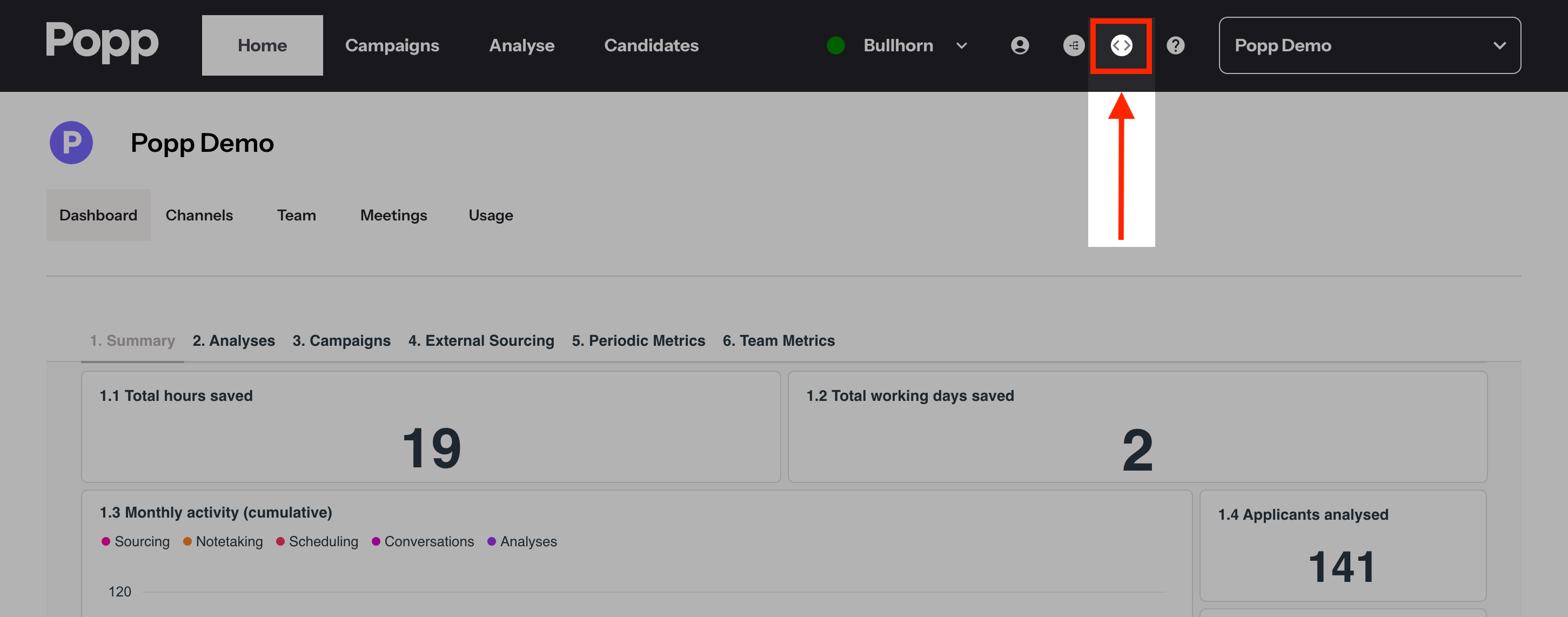
1 - Access the developer portal from Popp
Click on the “<>” icon
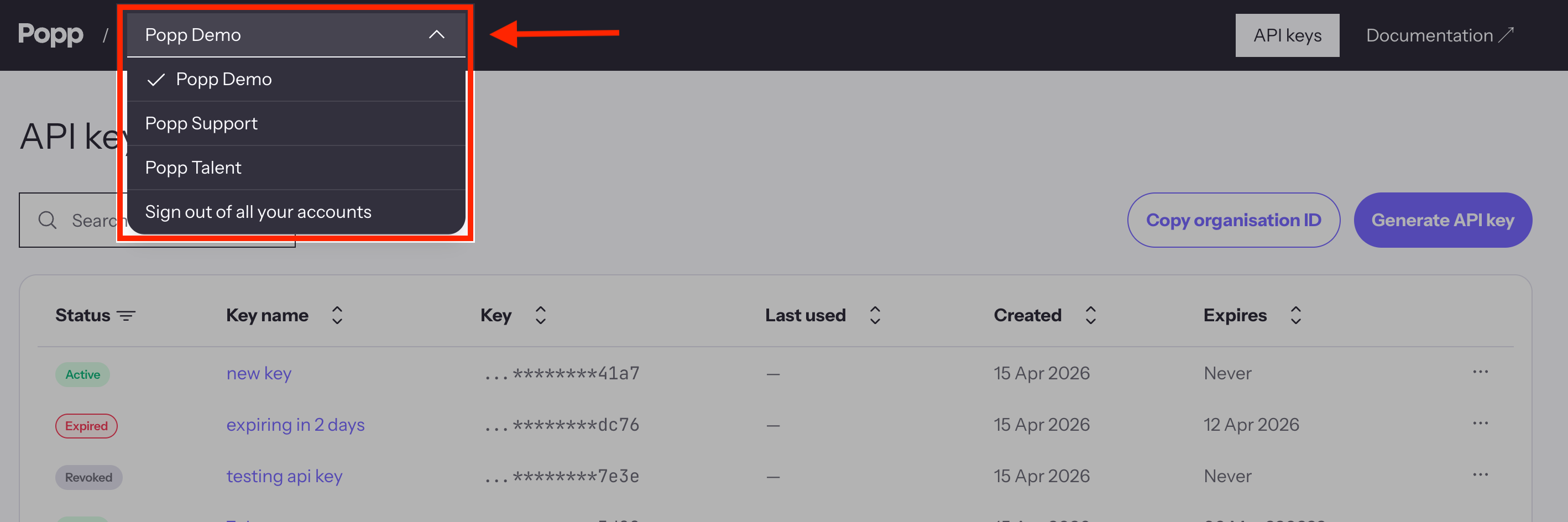
2 - Ensure you select the right organisation/account
3 - Detailed walkthrough recording below
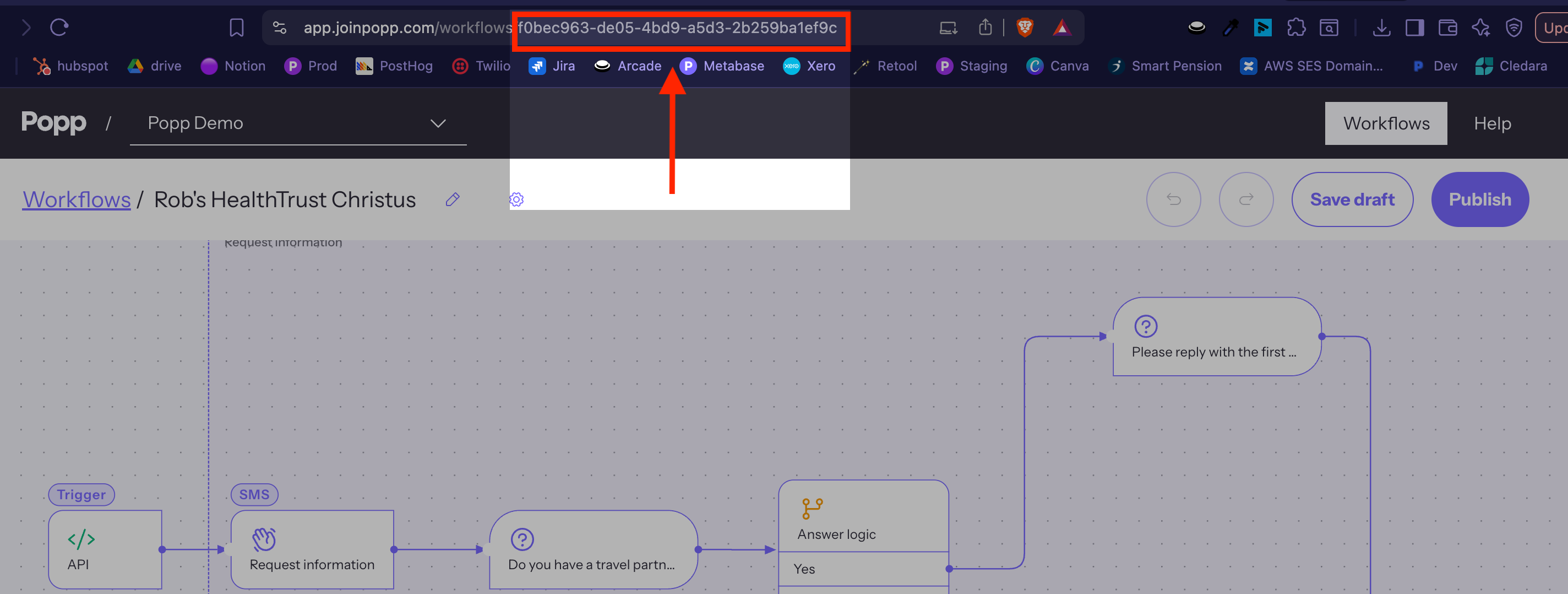
4 - Workflow builder
The engineering team will need the workflow ID to send candidates to Popp via the API. This can be copied directly from the URL of the workflow page.
Detailed steps
Part 1: Generating an API Key
API keys are used to authenticate requests to all Popp API endpoints. You can find the full list of available endpoints in the Documentation section of the portal.
Steps
Navigate to the API Keys section of the Developer Portal.
Click Generate New Key.
Give the key a descriptive name (e.g.
Production Key).Set an expiry date, or select Never if you want the key to remain active indefinitely.
Click Generate.
⚠ Important: Copy Your Key Immediately
Once the key is generated, it will be displayed once only. There is no way to retrieve it again after you close the modal. Copy it and store it in a secure location (e.g. a password manager or secrets vault) before proceeding.
Part 2: Finding Your Organisation ID
Your Organisation ID is required alongside your API key to make valid authenticated requests to the Popp API. You can find it in the Developer Portal dashboard. Keep this alongside your API key in your integration configuration.
Part 3: Creating and Managing Webhooks
Webhooks allow you to receive real-time event notifications from Popp - for example, when a conversation or workflow is started, ended, or completed.
Recommended Testing Tool
Before creating a live webhook, we recommend using Webhook.site to test your setup. It gives you a temporary URL that logs all incoming requests, so you can inspect the payload and confirm events are being delivered correctly before pointing to your production endpoint.
Creating a Webhook
Navigate to the Webhooks section of the Developer Portal.
Click Create Webhook.
Enter a descriptive name for the webhook (e.g.
Live Webhook).Paste in your endpoint URL (use a Webhook.site URL for testing, or your production URL for live use).
Select the events you want to subscribe to (e.g. Conversation Started, Conversation Ended, Show Completed).
Click Generate Secret to create a webhook secret.
Copy the secret immediately — like API keys, it is shown only once and cannot be retrieved afterwards.
Click Confirm to save the webhook.
Regenerating a Webhook Secret
If you lose or need to rotate your webhook secret, you can regenerate it at any time:
Open the webhook and click Regenerate Secret.
Copy and store the new secret.
Note: Regenerating a secret immediately invalidates the previous one. Any consumers of this webhook must be updated to use the new secret — make sure to notify all relevant team members or services before regenerating.
Sending a Test Event
Once your webhook is created, you can verify it's working by sending a test event:
Find the webhook in your list and click Edit.
Click Send Test Event and select an event type (e.g.
Completed).Check your endpoint (or Webhook.site) to confirm the event was received.
A Delivery Successful status confirms the webhook is configured correctly.
If delivery fails, check that the endpoint URL is correct and accessible. An invalid or unreachable URL will result in a failed delivery.
Quick Reference
Item | Where to find it | Visibility |
|---|---|---|
API Key | Generated in the API Keys section | One-time only - copy immediately |
Organisation ID | Developer Portal dashboard | Always visible |
Webhook Secret | Generated when creating a webhook | One-time only - copy immediately |
Regenerated Secret | Webhook edit screen | Replaces and invalidates previous secret |
Workflow ID | URL on the workflow page | Always visible |
For a full list of available API endpoints, see the Documentation section of the Developer Portal.